- Right-click on the Start button.
- Click Programs and Features.
- Right-click on the program you want to uninstall.
- Click Uninstall.
Friday, April 29, 2016
Windows 10 Shortcut - Remove a Program
Here’s
a quick shortcut to remove a program in Windows 10:


Wednesday, March 9, 2016
Remove Hyperlinks from Data Copied from Internet
Sometimes when you copy data or pictures from the
internet and paste it into your own document, you might notice that there is a
link connecting the data to a location on the web.
If you want to remove that connection, when you see the pointing hand indicator (with a suggestion to click to follow link), do not click, but right click instead, and from the context menu, select Remove Hyperlink.


If you want to remove that connection, when you see the pointing hand indicator (with a suggestion to click to follow link), do not click, but right click instead, and from the context menu, select Remove Hyperlink.


Sunday, January 31, 2016
Using the Index in Windows 10
If you've upgraded or
purchased a computer with Windows 10, you probably haven’t found all the
changes to the Start menu. Check out the new Index.
First click the Start button, and then click “All Apps” (no longer “All Programs”).

You will see a list of all the apps loaded on your computer in ABC order. (Note: The first time, you might only see a blank section. Just click in the blank section to bring up the index or app list.)
 J
J
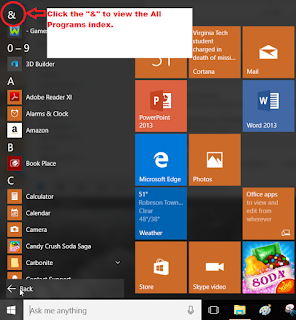
When you see the list of apps, just click on the “&” at the top of the screen, OR simply click the letter at the top of the list to view the index.
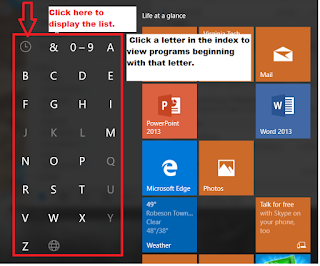
When the Index appears, click on the letter to view the list that begins with the selected letter. For example: To open the Microsoft Solitaire Collection, click the letter “M” and then click the app name.
First click the Start button, and then click “All Apps” (no longer “All Programs”).

You will see a list of all the apps loaded on your computer in ABC order. (Note: The first time, you might only see a blank section. Just click in the blank section to bring up the index or app list.)
 J
JWhen you see the list of apps, just click on the “&” at the top of the screen, OR simply click the letter at the top of the list to view the index.

When the Index appears, click on the letter to view the list that begins with the selected letter. For example: To open the Microsoft Solitaire Collection, click the letter “M” and then click the app name.
Tuesday, January 5, 2016
Copy and Paste Subtotal Rows to Another Location
Back in August 2015 I did
a Helpful Hint on how to shade the subtotal rows, all at the same time,
but I recently was asked if you could take only the subtotal rows, copy/paste
them elsewhere. Yes you can, using the
same technique.
1. Once
you’ve applied subtotals, click on the “2” to view only the subtotals.
2. Click
in a cell containing a subtotal.
3. Press
Ctrl+a to select all.
4. Press
Alt+: (colon) to only select the subtotals and not the supporting data rows.
5. Press
Ctrl+c to copy the subtotal rows.
6. Go to
where you want to place the subtotals, click in the first cell.
7. Press
Ctrl+v to paste the subtotal rows!
Wednesday, December 2, 2015
Change the Default Browser in Windows 10
The default browser in Windows 10 is called Edge. If you want to change the default browser to something different, the browser you want to use has to currently be installed on your computer.
Follow the steps below to change your default browser.
Follow the steps below to change your default browser.
- Click the Start icon in the lower left corner of the taskbar.
- In the Search box type: default programs.
- Click "Default Programs" to open the list of default programs.
- Scroll down to Web browser and click Microsoft Edge.
- A list of installed Browsers displays. Click the Browser name to be your default browser.
- Close the window by clicking the "X".
- You're finished!
Sunday, August 2, 2015
Format Subtotal Rows ONLY in Excel
IF YOU ALREADY USE SUBTOTALS IN EXCEL, HERE IS A GREAT TIP:


Did you know that you can easily format the subtotal lines to stand out
from the rest of the rows? Here’s how:
1. First apply subtotals to your data.
2. Click the "2" (top left corner) to view only the subtotals.
3. Click in a cell containing a subtotal.
4. Press Ctrl+A (to select all the subtotal data).
5. Press Alt+: (colon) to only select the viewed data and NOT the hidden rows.
6. Click the HOME tab and select a format of your choice.

7. Finished! Click back on "3" to view all data and only the subtotal rows should be formatted.

Sunday, June 28, 2015
Excel Tip - Wrap Text
Do you know the secret for wrapping text within a cell when the text you want to wrap is less than the cell width?
ANSWER: Click in a cell and type what you want to appear on the top line of the cell. Press Alt+Enter and then type what you want on the next line. If more lines are needed, repeat Alt+Enter, if finished, press ENTER.
EXAMPLE:


Make sure the cell width is wide enough to display the longest line. Type Bev Manwiller; press Alt+Enter; type phone number; press Alt+Enter; type website; press Enter.
Subscribe to:
Comments (Atom)