Tuesday, April 30, 2013

Bring Back the Old Print Preview

Beginning in Office 2010, the old "Print Preview" was replaced with a new "Print Preview" that does little more than show you what will print on each page.  I prefer the old "Print Preview" options that allowed you to edit your document or shrink a 2 page Word document down to 1 page with a click of a button.  If you want to view your document using the old "Print Preview" options, follow the steps below.

Note: These instructions add the "Preview and Print" command to the Quick Access Toolbar.  If you are not familiar with this toolbar, see previous Helpful Hint from January 2013 for more information.You can also add this command to the ribbon.

Open Microsoft Word 2010.
Right-click anywhere on the Ribbon.
Click Customize Quick Access Toolbar...
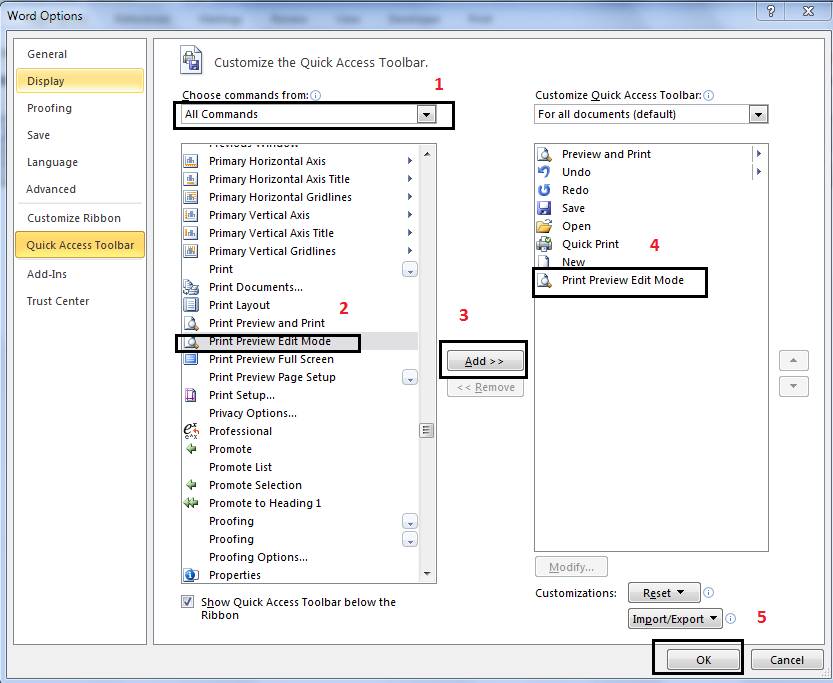
  1. In the Choose Commands from drop-down box select All Commands.
  2. Scroll down the commands and select Print Preview Edit Mode.
  3. Click the Add button in the center of the screen.
  4. The command is added to the Quick Access Toolbar on the right.
  5. Click OK.


Now you can click the Print Preview Edit Mode command on the Quick Access toolbar to view your document in the old "Print Preview".

Print Preview Edit Mode command on Quick Access Toolbar
Need training? Contact me!  I travel anywhere in the world and I supply the training manuals!  
EMAIL: bev@manwillercomputertraining.com

Sunday, March 31, 2013

What is an XPS document and how do I create one?


XPS documents are available for Word, Excel, and PowerPoint programs beginning with Microsoft Office 2007 through Office 2013.  It is Microsoft’s version of the Adobe PDF documents.  

If you want to share your document with someone who doesn't have Microsoft Office, you can save the Word, Excel, or PowerPoint file as an XPS document and anyone will be able to view the file, even though they don't have Microsoft Office.

If you don't want the document to be edited by the reader, XPS is now your best option. 

XPS vs. PDF

  • Anyone with an XPS Viewer can read an XPS document.  The viewer is free and is automatically installed on all computers running Windows Vista, Windows 7, or Windows 8.  It is a free download from Microsoft for anyone running Windows XP.  Adobe Reader is not automatically installed but it is a free download from Adobe.
  • The XPS document cannot be changed.  PDF’s can now be edited in MS Word 2013.
  • When you print an XPS document, it looks exactly like the original Word or Excel file.  PDF’s are slightly smaller.

How to create an XPS document

  1. Create a document in Microsoft Word, Excel, or PowerPoint (2007 or newer).  Note: If you have multiple Excel worksheets that you want to save as XPS, before continuing below, first select all the worksheets. (Select the first worksheet tab and then hold down the SHIFT key and select the last worksheet tab.)
  2. Press Ctrl+S to save the file or save it as a normal document first and then use "Save As" for the XPS document.
  3.  Choose a location to save the file.
  4. Enter a file name.
  5. In the Save as type: click the down arrow and select XPS Document (*.xps)

How to view and XPS document

  • Open the document like you would open any other document.  As long as the XPS viewer is installed, the document will open for you to view, but not edit.

Tuesday, February 26, 2013

Edit a .PDF file in Word 2013

  1. Open MS Word 2013.
  2. Click the File tab and then click Open.
  3. Locate the PDF file you wish to edit and double-click the file name to open it.
  4. Make the desired changes.
  5. Click File tab, and then click Save.
  6. Do ONE of the following:
    1. If you want to save the PDF file as a Word file, click Save.
    2. If you want to re-save the file as a .PDF, change the Save as type to PDF. Change the file name, or change the location.
    3. Click Save.
IMPORTANT NOTE: 
If you don't want anyone to be able to edit your file, save it as an XPS Document instead of a .PDF.  This option is available beginning with Word 2007 and newer.

Friday, February 1, 2013

Using the Magnifier in Windows 7


Windows 7 has a built-in Magnifier which you can use anytime you want to enlarge what you are viewing on your computer screen.  The magnifier is part of the “Ease of Access” tools. 

  1.  To open the Ease of Access Center, click the Start Button and then open Control Panel.
  2. Double-click on Ease of Access Center.  (Shortcut: Windows button+u)
  3. Click Start Magnifier.  The magnifier opens, usually as a rectangular lens on your screen.  Move your mouse to move the magnifying lens.


  • To turn off the Magnifier, point and click on the magnifier symbol (shown above).  This action displays the Magnifier toolbar.  Click the X at the top right of the Magnifier toolbar (shown below). 


  • To magnify the whole screen instead of using the lens magnifier, click the Magnifying lens and then click Views on the Magnifier toolbar. Select Full Screen from the menu.
  • To increase (+) or decrease (-) magnification, click the appropriate symbol on the Magnifier toolbar.